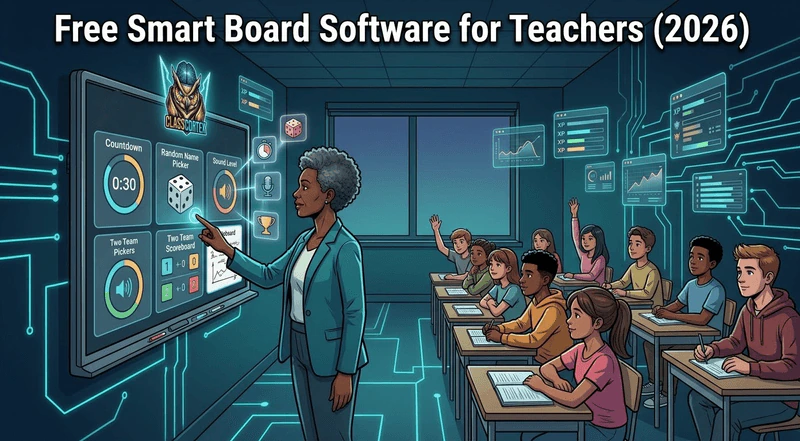
Free smart board software for teachers falls into two groups. Lesson authoring software such as SMART Notebook, ActivInspire and OpenBoard builds pages you write on. Browser dashboards such as Classroomscreen and Class Cortex run timers, pickers, noise meters and games live during the lesson, with nothing to install. Most teachers use one of each.
Most schools now have an interactive panel or smart board in every room, and most teachers use about ten percent of what it can do. The board itself is just a large touchscreen. What makes it useful is the software running on it, and the free options split into two quite different kinds of tool.
This guide explains the difference, compares the free smart board software worth knowing about in 2026, and covers the practical details that matter on real classroom hardware: readability from the back row, touch support, and what happens on an older, underpowered panel.
Two Kinds of Smart Board Software
Lesson authoring software is what the board makers ship. You build pages or flipcharts in advance, then write, drag and annotate on them during the lesson. It is the digital version of a prepared whiteboard, and it is excellent for teacher-led explanation.
Classroom dashboards run in a web browser and handle the live running of the room: a countdown timer, a random name picker, a noise meter, a scoreboard, a quick whiteboard. You do not prepare anything in advance, you open the tab and use what the lesson needs. Teachers searching for "smart board websites for teachers" are usually looking for this second kind.
The two do not compete much. A typical lesson might use authoring software for the explanation and a dashboard for the timer, the cold call and the end-of-lesson quiz.
The Best Free Smart Board Software for Teachers in 2026
1. SMART Notebook
SMART's own lesson software is subscription-free for use with a SMART Board display: pen tools, SMART Ink, widgets, and text, line and shape tools are all included. The paid SMART Notebook Plus subscription adds game-based activity templates, student device connection, SMART Blocks and concept maps. The catch for schools with mixed hardware is touch: according to SMART's own documentation, the free version's touch interactions work only with SMART Board displays, and full touch on other brands of panel needs Plus.
2. ActivInspire
Promethean's flipchart software has a Personal Edition that Promethean lists as a free download, with a note that conditions can vary by country. The Professional edition adds tools such as a screen recorder, a shapes library and design mode. Like SMART Notebook, it is a lesson building tool first, designed around Promethean's own boards.
3. OpenBoard
OpenBoard is free, open source software released under the GPLv3 licence and maintained by the education department of the canton of Geneva. It runs on Windows, macOS and Linux and works with any interactive whiteboard, a pen tablet, or just a mouse. If your school has mixed hardware and no budget, it is the most flexible free authoring option, though it has fewer ready-made lesson resources than the board makers' own software.
4. Classroomscreen
Classroomscreen is the best-known browser dashboard. Its free Basic plan includes all of its widgets (timer, name picker, sound level, scoreboard, drawing and more), and Pro is about USD $36 a year. It needs no install and students never log in. It does not include gamification, so nothing carries over from one lesson to the next. Our roundup of Classroomscreen alternatives compares it with similar dashboards.
5. Class Cortex
Class Cortex is a free classroom dashboard built for the board at the front of the room, and it runs in any modern browser with nothing to install on the panel. It combines the live tools a dashboard needs with a class XP system that persists between lessons, and students never create accounts.
What Class Cortex Puts on the Board
- Timers: Arc and Detonator countdowns, plus a stopwatch with laps. See our guide to the best free classroom timers.
- Personnel Picker: random student picks with no repeats until everyone has had a turn, and Squad Deploy for instant groups.
- Sonic Defence Noise Monitor: visual alarm, audio cue and Quiet Streak XP on the free tier; automatic XP deduction on Pro.
- Tactical Scoreboard: two-team scoring with a target score, match timer and round log. Read our free classroom scoreboard guide.
- Tactical Whiteboard: pen, shapes, text, laser pointer and PNG export, with two free templates.
- Boss Battle: students answer on their own devices by scanning a QR code, while the boss battle plays on the board.
Two display settings matter on classroom hardware. Presentation Scale, in the Display section of Settings, enlarges the whole dashboard for TVs and projectors and also puts the browser into full screen, so text is readable from the back row. Performance Mode turns off background blur and decorative animations and shows Boss Battle bosses in 2D, which keeps the dashboard smooth on older interactive panels and smart TVs. The free tier covers one class of up to 30 students; Pro is AUD $49 a year (auto-renews, cancel anytime) and adds 12 class slots, extra themes and Pro tools.
Smart Board Software Comparison
| Software | Type | Install needed | Any brand of board | Free version |
|---|---|---|---|---|
| SMART Notebook | Lesson authoring | Yes | Touch on SMART only | Core tools |
| ActivInspire | Lesson authoring | Yes | Built for Promethean | Personal Edition |
| OpenBoard | Lesson authoring | Yes | Yes | Fully free |
| Classroomscreen | Browser dashboard | No | Yes | Basic plan |
| Class Cortex | Browser dashboard | No | Yes | Free tier |
What to Look for in Smart Board Software
- Readability: large numbers and text that students can read from the back row, ideally with a way to scale the whole display up.
- Touch targets: buttons big enough to hit with a finger while standing at the board, not a mouse-sized toolbar.
- Hardware support: check whether the free version supports touch on your brand of panel, not just the maker's own.
- Performance: the computer inside many interactive panels is modest. Browser tools with a lightweight mode run better than heavy animated pages.
- No student logins: anything students interact with should work by code or QR, without accounts. Our list of classroom tools with no student login covers more options.
Setting Up a Dashboard on an Interactive Panel
Open the dashboard in the panel's browser (or on the laptop connected to it) and bookmark it on the home screen. Turn on full screen, or Presentation Scale in Class Cortex, so the browser bar does not eat into the display. If the panel has a built-in microphone, the noise monitor can use it directly; otherwise use the connected laptop's microphone and calibrate at the start of the lesson. Our guide to the free classroom noise monitor walks through calibration. For drawing and annotation, a browser whiteboard is often quicker than opening authoring software, and our guide to free online whiteboards for teachers compares the options.
Which Smart Board Software Should You Use?
Keep the board maker's free software, or OpenBoard on mixed hardware, for building and delivering explanation-heavy lessons. Then add a browser dashboard for running the room. Classroomscreen is a solid, simple widget board. Class Cortex covers the same live tools and adds a class XP system, squads and Boss Battles that carry from lesson to lesson, all free and with no student accounts.
No student accounts. No credit card. No install.
Frequently Asked Questions
Is SMART Notebook free?
SMART Notebook can be used without a subscription with a SMART Board display, and includes pen tools, SMART Ink, widgets, and text, line and shape tools. The paid SMART Notebook Plus subscription adds game-based activities, student device connection and full touch support on other brands of interactive display.
What free smart board software works on any brand of interactive whiteboard?
OpenBoard is free, open source and works with any interactive whiteboard on Windows, macOS and Linux. Browser-based dashboards such as Classroomscreen and Class Cortex also work on any panel with a modern web browser, because nothing is installed on the board itself.
Do I need to install software to use a smart board?
Not for everything. Lesson authoring tools like SMART Notebook, ActivInspire and OpenBoard are installed programs, but browser dashboards run in a web browser with nothing to install. Many teachers keep one installed authoring tool for lessons and use a browser dashboard for timers, pickers, noise monitoring and games.
What is a classroom dashboard?
A classroom dashboard is a browser page that puts the tools you need to run a lesson on one screen, such as a countdown timer, a random name picker, a noise meter, a scoreboard and a quick whiteboard. You open it at the start of the lesson and use whichever tool you need, with no preparation in advance.
Will Class Cortex run on an older interactive panel?
Yes, in most cases. Class Cortex runs in any modern browser, and Performance Mode in Settings turns off background blur and decorative animations and shows the Boss Battle bosses in 2D, which keeps it smooth on older panels and smart TVs. Presentation Scale enlarges the dashboard for reading from the back of the room.
Further Reading