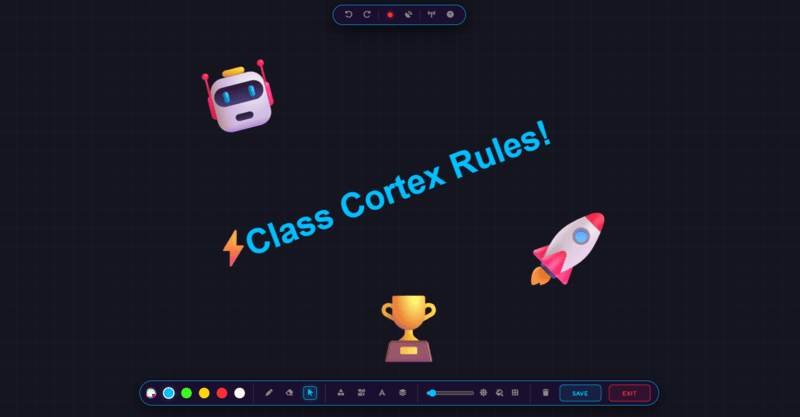
The Whiteboard is a full-screen digital drawing board with ready-made templates, and on Pro, a real-time shared canvas the whole class can draw on together from their own device.
The Whiteboard gives you a full-screen drawing canvas with a proper set of tools - pen, eraser, shapes, a fill bucket, a laser pointer for presentations, and a text tool for labelling anything you draw. Two ready-made templates, Think-Pair-Share and Venn Diagram, are free, with four more on Pro. On Pro, it goes further still: a live collaboration mode that turns your board into a shared canvas every connected student can draw on in real time, alongside you and each other.
This guide covers the standalone drawing tools first, then Live Collaboration and what to do if students are having trouble connecting.
What Whiteboard Does
The Pen is the default tool, alongside Eraser, a Select tool for moving or editing existing objects, a Fill bucket, and a Laser pointer for presenting without leaving a mark. Five preset colours are built in - cyan, green, yellow, red, and white - plus a custom colour picker, with brush size adjustable from 2 to 50.
Templates drop a ready-made structure onto the canvas as one movable, resizable object - Think-Pair-Share and Venn Diagram are free, while Mindmap, KWL Chart, Kanban Board, and Reflection Table are Pro. Shapes and Stickers are both Pro additions too. Undo and Redo, a grid toggle, a dark or light theme toggle, and SAVE to export as a PNG round out the standalone toolset.
How to Use Whiteboard: Step by Step
Running a standard drawing session takes four steps.
- Open the Whiteboard and pick a tool
Pen is selected by default. Switch to Eraser, Select, Fill, or Laser Pointer from the toolbar depending on what you need to do.
- Insert a template if you need a structure
Think-Pair-Share and Venn Diagram are free; Mindmap, KWL Chart, Kanban Board, and Reflection Table are Pro. Each one drops in as a single object you can move, resize, or delete.
- Draw, annotate, and adjust as you go
Use the 5 preset colours or the custom picker, adjust brush size from 2 to 50, and use Undo/Redo (Ctrl+Z / Ctrl+Y) freely if something needs correcting.
- Save your work
Click SAVE to export the current board as a PNG, so a lesson's diagram or brainstorm is not lost once you move on to the next activity.
Classroom Use Cases
The Whiteboard covers both solo teaching use and, on Pro, genuine whole-class collaboration:
- Live worked examples and diagrams during direct instruction, using the pen and shapes tools the same way you would use a physical whiteboard.
- A structured discussion activity using a free template like Think-Pair-Share, or a Pro template like a Kanban Board for tracking group project stages.
- A whole-class brainstorm or think-pair-share where every student draws on the same live board from their own device, using Live Collaboration on Pro.
Live Collaboration: What Actually Happens on the Shared Board
Starting a session shows a room code and QR that only become connectable once you press START SESSION. Students join at classcortex.com/whiteboard, sessions cap at 20 students or your roster size if smaller, and every student can only move, edit, or delete their own objects - never anyone else's. You can touch anything from any student at any time, and Freeze pauses all student drawing instantly if you need the room's attention. Ending a session only disconnects students; whatever was drawn stays on your board permanently, the same as anything else you draw.
How Whiteboard Ties Into the XP Economy
The Whiteboard itself does not award or deduct XP - like the Timer and Chance, it is a pure content and collaboration tool that sits outside the XP economy.
Where it connects to XP is entirely through how you choose to use it - for example, awarding a manual Command Deck XP bonus to students or squads who contributed strong ideas during a live collaborative brainstorm, the same way you would for any other class activity.
Free vs Pro: What's the Difference?
The full standalone drawing toolset, two templates, and PNG export are free. Pro adds Shapes, Stickers, four more templates, and Live Collaboration.
| Whiteboard Capability | FREE | PRO |
|---|---|---|
| Pen, colours, text, and PNG export | Included | Included |
| Templates | 2 (Think-Pair-Share, Venn Diagram) | 6 total (4 extra) |
| Live whole-class collaboration | Not available | Included, up to 20 students |
No student accounts. No credit card. No install.
Frequently Asked Questions
Do students need an account to join a live Whiteboard session?
No. Students go to classcortex.com/whiteboard, enter the room code or scan the QR code, and pick a name - typed or randomised - with no account, email, or download needed.
Can students edit each other's drawings during a live session?
No. Each student can only move, edit, or delete objects they created themselves - not another student's work. You, as the teacher, can touch anything from any student at any time.
What happens to the board when a live session ends?
Nothing is cleared. Ending a session only disconnects students - everything drawn during the session stays on your board permanently, exactly the same as if you had drawn it yourself.
My students can't connect to a live Whiteboard session - what's wrong?
This uses the same peer-to-peer connection as Boss Battle and is almost always a school network issue. Ask IT to allow UDP ports 3478 and 5349 on the school Wi-Fi. If an iPad's screen locks and kills the connection, turn off Auto-Lock in Settings > Display & Brightness on student devices during the session.
Which Whiteboard templates are free and which need Pro?
Think-Pair-Share and Venn Diagram are free. Mindmap, KWL Chart, Kanban Board, and Reflection Table are Pro-only.
Further Reading