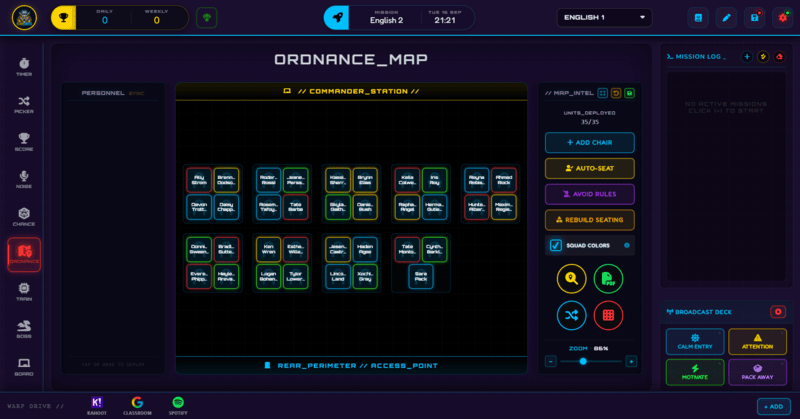
The Ordnance Map is a drag-and-drop seating chart with Tactical Shuffle, Conflict-Avoid pairing rules, and a full-screen presentation view for showing a class where to sit.
A seating chart only stays useful if it is actually easy to update, and the Ordnance Map is built around exactly that - tap a student to arm them, tap a seat to place them, and the whole layout updates instantly. It runs on a large 3000x2000 canvas, far bigger than your screen, so a genuinely oversized or awkwardly staggered room still has space to lay out properly.
This guide covers deploying students, merging seats into pods, Tactical Shuffle, Conflict-Avoid rules, and the full-screen presentation view for showing the finished layout to the class.
What Ordnance Map Does
Deploy a student by tapping their name in the unassigned bank to arm them, then tapping an empty or occupied seat to place them there - or drag a name straight from the bank onto a seat instead. Merge individual seats into shared pods (pairs, trios, quads) by dragging one seat into another, which is how group tables are built.
Teleport Swapping lets you click one occupied seat, then another, to instantly swap those two students without dragging anything. Tactical Shuffle randomly redistributes everyone currently seated across the occupied chairs in one click - and on Pro, Conflict-Avoid rules make sure specific student pairs never end up in the same pod, whether you shuffle, auto-seat, rebuild, or move someone manually. Pro also adds a Squad Colors toggle that colors each seated pod's border - and each name in the unassigned bank - to match that student's Squad, so you can see squad distribution across the room at a glance.
How to Use Ordnance Map: Step by Step
Building a seating chart from scratch takes four steps.
- Add chairs to match your room
Use Add Chair to create empty seats, or start with Auto-Seat to fill every unassigned student into empty seats row by row, creating new chairs automatically if the room runs out of space.
- Merge seats into pods where you want groups
Drag one seat pod into another to snap them together into a shared group. Single chairs stay as individual seats until you merge them.
- Set Conflict-Avoid rules and Squad Colors, if you have Pro
Open Avoid Rules, pick pairs of students who should never share a pod, and add them - Shuffle, Auto-Seat, Rebuild Seating, and every manual move all respect this automatically from then on, with a red glow on any conflict. Separately, flip on Squad Colors to have every pod border and bank name tag colored by Squad, so squad distribution is visible on the map itself.
- Save the layout and show it to the class
Click the small save icon next to the MAP_INTEL header to store the arrangement. Use the Enlarge icon for a full-screen, read-only presentation view when you actually want the whole class to see where they are sitting.
Classroom Use Cases
The Ordnance Map covers everything from a permanent term-long layout to a quick one-off rearrange:
- A standing seating plan for the term, built once with Conflict-Avoid rules set for any known personality clashes, then left mostly untouched aside from occasional swaps.
- Quick group-work rearranges using Rebuild Seating to switch between pairs, groups of 3 to 6, or single-seat rows, without losing the underlying roster or conflict rules. On Pro, turning on Squad Colors first makes it easy to see at a glance whether a new arrangement has kept squads reasonably spread out.
- Handing the room to a relief teacher, using PDF Export to generate a printable chart that includes any Conflict-Avoid rules on the page, since those rules are saved locally and do not automatically travel to a different device.
One Real Limitation Worth Knowing
If two students on your roster share the exact same full name, the Ordnance Map cannot always reliably tell them apart for Conflict-Avoid purposes. If that ever applies to your class, add a middle initial or use last names in the roster to distinguish them - otherwise a conflict rule involving one of them could silently apply to the wrong student.
How Ordnance Map Ties Into the XP Economy
The Ordnance Map itself does not award or deduct XP - seating is a logistics tool, not a scoring one. It sits alongside the XP economy rather than feeding into it directly.
Where it connects indirectly is through Squads: if you seat students in pods that roughly match their Squad groupings, it becomes easier to run squad-based activities and award squad XP through Command Deck at a glance, since the physical seating and the competitive teams line up.
Free vs Pro: What's the Difference?
Deploying, merging, Teleport Swapping, Tactical Shuffle, Auto-Seat, and Rebuild Seating are all free. Pro adds Conflict-Avoid Rules and a printable PDF export.
| Ordnance Map Capability | FREE | PRO |
|---|---|---|
| Deploy, merge pods, Tactical Shuffle, Rebuild | Included | Included |
| Conflict-Avoid seating rules | Not available | Included |
| Squad Colors & PDF seating export | Not available | Included |
No student accounts. No credit card. No install.
Frequently Asked Questions
How do I move a student to a different seat?
Either drag their name from the unassigned bank onto an empty seat, or use Teleport Swapping - click one occupied seat, then click another, and the two students swap instantly. Tapping an occupied seat on its own returns that student to the bank.
What are Conflict-Avoid rules and do I need Pro for them?
Conflict-Avoid rules let you set pairs of students who should never end up seated in the same pod. They are Pro-only, and once set, they are respected by Tactical Shuffle, Auto-Seat, Rebuild Seating, and every manual seat move - not just one-off shuffles.
How do I show the finished seating chart to the whole class?
Click the Enlarge icon next to Save Layout for a full-screen, read-only presentation view - built for projecting so the whole class can read their seat from across the room. It automatically re-fits if the display resizes, and closes with X or Escape without changing the live editable map underneath.
Does the seating chart work for a really large or unusually shaped room?
Yes - the canvas is 3000x2000, much larger than your screen, with right-click-drag to pan and scroll-wheel zoom to navigate it. A big class laid out in staggered rows of group tables, well beyond 30 students across many pods, still fits comfortably on the canvas.
What does the Squad Colors toggle do?
It is a Pro-only display toggle that colors every seated pod's border, plus each student's name tag in the unassigned bank, to match their assigned Squad. It is purely visual - it does not change seating logic - and is useful for seeing squad distribution across the room at a glance.
Further Reading