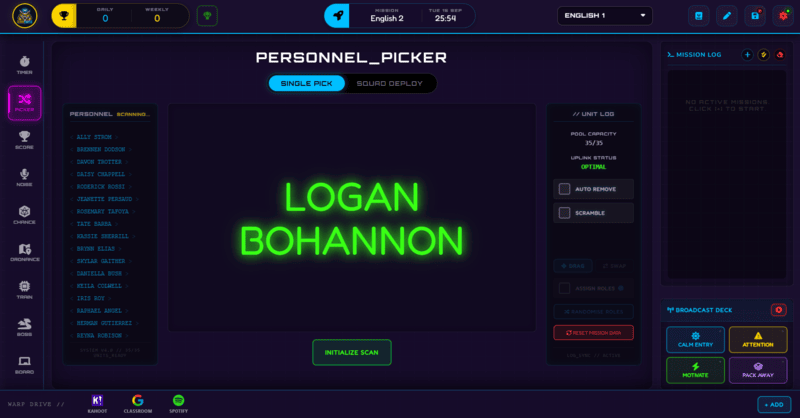
The Picker runs a single random draw or deploys whole squads at once, with an Exempt setting that quietly protects anxious students without changing what the rest of the class sees.
Cold-calling fairly is harder than it sounds - the same handful of hands go up every time, and it is easy to lose track of who has already answered this week. The Picker solves this with a single click: INITIALIZE SCAN randomly selects one student and shows the result in a large animated viewport, cycling through names before landing on the pick, so the whole class can see it happening rather than just trusting your word for it.
Beyond the single pick, it can also deploy the whole class into randomised teams at once, and on Pro it can assign a role to each team member automatically. This guide covers both, plus the Exempt setting worth knowing about if you have a student who struggles with being put on the spot.
What Picker Does
Single Pick draws one student from the roster and displays the result with an animated cycle effect, similar to a slot machine settling on a result - it is deliberately visible and dramatic rather than a quiet text pop-up, so the whole class trusts the draw was genuinely random.
Squad Deploy generates multiple randomised teams in one action. Set your preferred squad size (default 4) and click DEPLOY SQUADS to instantly split the whole roster into balanced groups - useful any time you want random teams without manually dragging names around.
How to Use Picker: Step by Step
Running a fair, transparent draw takes four steps.
- Load your roster
The Picker draws from whichever class roster is currently active, so make sure you are on the right class before drawing - the side panel shows every student currently in the selection pool.
- Choose Single Pick or Squad Deploy
Click INITIALIZE SCAN for a single random student, or set a squad size and click DEPLOY SQUADS to split the whole class into randomised teams in one action.
- Turn on Auto-Remove if you want no repeats
Toggle Auto-Remove to automatically take each picked student out of the pool until you reset it - handy for making sure everyone gets a turn before anyone goes twice.
- Set up Exempt students once, at the start of term
In Settings > Roster, mark any student who should never actually be selected. They still appear normally in the scramble animation, so nothing looks different to the rest of the class - they simply never land as the final result.
Classroom Use Cases
The Picker covers most situations where you would otherwise be relying on memory or a show of hands:
- Cold-calling during discussion or review, with Auto-Remove on so the same few students are not picked twice before everyone else has had a turn.
- Splitting the class into random groups for an activity with Squad Deploy, instead of manually assigning teams or letting students self-select into the same friend groups every time.
- Assigning roles automatically within those groups on Pro, so every group has a Leader, Scribe, Presenter, and so on without you having to allocate them by hand.
Picker Exempt: Protection Nobody Else Notices
A student who gets genuinely anxious about being called on can be marked Exempt from Settings > Roster. They are never actually the winner of a Single Pick draw - but they still appear in the live scramble animation exactly like everyone else, so no other student in the room can tell they have been excluded. The whole system is controlled by one master SCRAMBLE toggle in the Unit Log, on by default, so you can disable every exemption at once if you ever need to.
How Picker Ties Into the XP Economy
The Picker does not award XP directly - it is a selection tool, not a scoring one. Where it connects to the XP economy is downstream: a student picked to answer, present, or lead a group is then usually the one you award XP to through Command Deck once they have actually done the thing they were picked for.
Role Assignment on Pro extends this slightly further by giving every group member a defined job - Leader, Scribe, Presenter, Timekeeper, Researcher, Designer, or Helper for larger groups - which makes it easier to award XP fairly across a group activity, since you can see at a glance who was responsible for what.
Free vs Pro: What's the Difference?
Single Pick, Squad Deploy, Auto-Remove, and Picker Exempt are all free. Pro's addition is automatic Role Assignment within squads.
| Picker Capability | FREE | PRO |
|---|---|---|
| Single Pick and Squad Deploy | Included | Included |
| Picker Exempt for anxious students | Included | Included |
| Automatic Role Assignment | Not available | Included |
No student accounts. No credit card. No install.
Frequently Asked Questions
How does Picker Exempt work without other students noticing?
The exempt student still appears in the live scramble animation exactly the same as every other student - the cycling effect looks identical either way. The only difference is that the final result never actually lands on them. Nothing on screen changes to reveal who is exempt.
Can I stop the same students being picked twice in a row?
Yes, using the Auto-Remove toggle. Once it is on, each student who gets picked is automatically taken out of the selection pool until you reset it, which guarantees everyone gets a turn before anyone repeats.
What is the difference between Single Pick and Squad Deploy?
Single Pick draws exactly one student and shows the result in the large hologram viewport. Squad Deploy instead splits your entire roster into multiple randomised teams at once, based on a squad size you set - useful for group work rather than picking one individual.
What does Role Assignment actually assign, and is it Pro only?
Role Assignment is a Pro feature that automatically gives each student in a squad a job - Leader, Scribe, Presenter, Timekeeper, Researcher, or Designer for groups of 3 to 6, plus Helper for larger groups. Roles are tied to the slot in the group, not the individual student, so they reflow automatically if you drag or swap someone between groups.
Does the Picker keep a history of who has already been picked?
The Auto-Remove pool effectively tracks this for the current session - anyone picked is removed until you use Reset Mission Data to restore the full roster. There is no separate long-term log beyond that session-based pool.
Further Reading