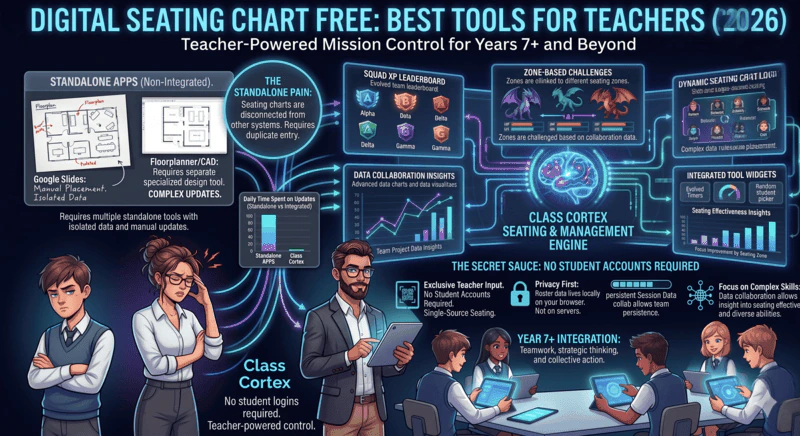
The most useful free digital seating chart is built from your class roster and saves automatically. Floorplanner and Google Slides work for one-off layouts but need manual relabelling. Class Cortex's Ordnance Seating Map offers free drag-and-drop seating that persists between sessions, with PDF export and keep-apart rules on Pro.
A seating chart sounds like one of the simpler classroom management tasks. In practice, most teachers manage it with a hand-drawn map on a piece of A4 paper, a spreadsheet nobody updates, or a dedicated seating chart app that requires fifteen minutes of setup every time the class reshuffles.
The problem with standalone seating chart tools is not that they are bad at producing a seating layout. Most of them do that reasonably well. The problem is that the layout exists in a separate app, disconnected from your class roster, your scoreboard, and every other tool you are running during the lesson. Moving a student between seats requires opening a different tab, finding the right file, and updating it manually - then remembering to save, then hoping the relief teacher can find it.
This guide covers the main free options for digital seating charts in 2026, gives each one an honest assessment, and explains why the most useful seating map for a classroom teacher is the one that is already integrated with the rest of your classroom management system. For context on what that system looks like as a whole, read our guide on how to gamify your classroom without losing control.
1. Floorplanner
Floorplanner is a room layout and interior design tool that teachers have repurposed for classroom seating plans. You can drag furniture objects onto a floor plan, arrange desks in whatever configuration your room uses, and produce a polished visual layout that looks professional on a printed page.
The free tier is genuinely functional for basic layouts. The visual output is significantly better than anything you would produce in a spreadsheet, and the drag-and-drop interface is intuitive for anyone who has used design software before.
The classroom-specific limitations are significant. Floorplanner has no concept of a student roster. You can label desks with names by adding text annotations, but there is no import, no roster sync, and no connection to any student tracking system. Every time you reshuffle seats you are relabelling text boxes manually. And because the tool was built for architects and interior designers rather than teachers, the workflow assumes you are arranging furniture rather than managing people.
Verdict: Good for producing a one-time classroom floor plan diagram. Not a practical tool for ongoing seating management across a term.
2. Google Slides Workaround
The Google Slides seating chart method involves creating a slide with rectangles or text boxes representing desks, typing student names into them, and updating the slide whenever seats change. It is free, requires no new tool, and works on any device with a Google account.
For teachers who already live in Google Workspace and want a zero-cost, zero-setup solution, this is a reasonable starting point. The layout is shareable via link, which makes it accessible to relief teachers and administration without any additional setup.
The practical limitations accumulate quickly. There is no drag-and-drop seat swapping - moving a student means deleting text from one box and retyping it into another. There is no roster integration, so adding a new student means manually adding them to the slide. There is no persistence logic - if you forget to save after a reshuffle, you lose it. And there is no connection to any classroom management system, which means the seating plan and everything else you are running in the lesson exist in entirely separate places.
Verdict: Acceptable workaround for teachers who need something immediately with no setup. Too manual to be a sustainable long-term solution for active seating management.
3. ClassDojo
ClassDojo includes a basic seating layout feature as part of its broader platform. Because ClassDojo has a class roster built in, the seating tool does pull from actual student names rather than requiring manual text entry - which is a meaningful step up from the Google Slides workaround.
The limitations are the same ones that affect ClassDojo across all of its features. The platform requires student accounts, which adds IT overhead and is frequently impractical in secondary schools. Its primary design focus is primary school classrooms, and the seating feature reflects that - it is a basic grid layout without the flexibility for varied room configurations. ClassDojo's mobile performance is also notably poor (43 on mobile, 10MB payload, failed Core Web Vitals), which can cause issues on school devices. Our ClassDojo alternative for secondary teachers covers the full picture of where the platform falls short for Year 7 and above.
Verdict: Roster integration is a genuine advantage over standalone tools, but the account requirement and primary-school focus make it a poor fit for most secondary classrooms.
4. Class Cortex - Ordnance Seating Map
Class Cortex's seating map is called the Ordnance Seating Map, and it was built as a classroom management tool from the ground up rather than adapted from a design or primary-school platform.
How the Ordnance Seating Map works
- Built from your class roster: Every student you have added to your Class Cortex class appears in the seating map automatically. No manual entry, no text box relabelling. Add a new student to the roster and they appear in the map. Remove a student and they are gone from both the map and every other tool simultaneously.
- Drag-and-drop seat assignment: Move students between seats by dragging their name card. The layout updates instantly and saves automatically. No save button, no file management, no version control headache.
- Persists between sessions: The seating layout is stored in browser localStorage alongside your XP data, squad assignments, and class roster. Open Class Cortex before your next lesson and the map is exactly where you left it - no loading, no syncing, no hunting for the right file.
- Drag students between periods: When you need to reshuffle between class periods, open the map, drag students to their new seats, and close it. The whole process takes under a minute for a full class reshuffle.
- Pro - PDF export: Pro users can export the current seating layout as a PDF instantly. The PDF shows the full room layout with student names in their assigned seats. Useful for relief teachers, administration, and emergency evacuation documentation - all from a single click.
- Same tab as everything else: The seating map is one of ten tools running inside Class Cortex. Switching from your seating map to the scoreboard to the student picker requires no tab changes and no context switching.
- Conflict-avoid seating rules (Pro): Set avoid-pairs of students who should not be seated together, and Tactical Shuffle (the random reseat button) respects them automatically - reshuffling until no avoid-pair lands in the same seating group. No more manually checking a reshuffled chart against a mental list of who cannot sit near whom.
Keeping certain students apart is one of the most common real-world seating constraints a teacher manages, and dedicated seating-chart tools have addressed it well - Shuffle Buddy, for one, is a genuinely well-built free Chrome extension built specifically around random seating that respects keep-apart rules. What none of those single-purpose tools do is live anywhere near your XP system, your noise monitor, or your squad scoreboard. Class Cortex's conflict-avoid rules (Pro) work the same way in principle - set an avoid-pair, and Tactical Shuffle will not seat them together - but they sit inside the same seating map that already shares a roster with your Student Picker and Command Deck, so there is no second tool to open, no second roster to keep in sync, and no separate account to manage for a feature you are already paying nothing for.
The critical difference between Class Cortex and every other option on this list is that the seating map shares a roster with the rest of the classroom management system. When you use the Student Picker, it pulls from the same student list that the seating map uses. When the noise monitor awards Quiet Streak XP, or deducts XP on Pro, it updates the same Command Deck that tracks the students in those seats. The seating plan is not a separate app - it is one view of the same underlying classroom data.
For teachers who are already running an XP system, this integration matters practically. You do not need to cross-reference a seating chart in one app with a student list in another. The student sitting in seat 4B is the same student in your picker pool and your squad scoreboard. That sounds simple, but the time it saves across a full term of lessons is real. For more on how the tools work together as a system, read our post on gamified classroom management with no student logins.
Side-by-Side Comparison
| Feature | Class Cortex | Floorplanner | Google Slides | ClassDojo |
|---|---|---|---|---|
| Built from class roster | ✓ | ✗ | ✗ | ✓ |
| Drag-and-drop seat swapping | ✓ | Partial | ✗ | Partial |
| Persists between sessions automatically | ✓ | Manual save | Manual save | ✓ |
| PDF export for relief teachers | Pro only | ✓ | ✓ | ✗ |
| No student accounts required | ✓ | ✓ | ✓ | ✗ |
| Integrated with XP and classroom management | ✓ | ✗ | ✗ | Partial |
| All tools in one tab | ✓ | ✗ | ✗ | ✗ |
| Conflict-avoid rules (keep students apart, Pro) | ✓ | ✗ | ✗ | ✗ |
| Completely free | ✓ | Basic free | ✓ | ✓ |
The Verdict
Floorplanner and Google Slides are the right tools if you need a one-time room layout diagram and have no interest in ongoing digital seating management. Floorplanner produces better-looking output. Google Slides requires zero new accounts. Both are fine for their specific narrow use case.
ClassDojo's roster integration is a genuine step up, but the account requirement and primary-school focus rule it out for most secondary teachers before they even get to the seating feature.
Class Cortex is the right tool if you want a seating map that actually connects to the rest of your classroom. The Ordnance Seating Map is free for drag-and-drop use, builds from your existing roster, persists automatically, and sits inside the same tab as your XP scoreboard, noise monitor, student picker, and timers. PDF export, conflict-avoid rules and squad colours are the Pro features - the drag-and-drop map itself is free from day one.
If you are already running Class Cortex for gamification and the XP system, the seating map is already there waiting for you. If you are not yet using Class Cortex, the seating map is as good a place to start as any - and once it is set up, the rest of the tools are one click away. For a full picture of how Class Cortex compares to the leading alternatives in the gamified classroom management space, read our ClassCraft alternatives comparison.
No student accounts. No credit card. No install.
Frequently Asked Questions
What is the best free digital seating chart tool for teachers?
Class Cortex's Ordnance Seating Map is the best free digital seating chart for classroom teachers because it is built directly from your class roster, supports drag-and-drop seat assignment, persists between sessions automatically, and runs inside the same classroom management system as your XP scoreboard, noise monitor, student picker, and timers. No student accounts are required at any point.
Can I use Google Slides as a classroom seating chart?
Yes. Create a slide with shapes or text boxes representing desks, type student names in each one, and update the slide when seats change. It is free and shareable via link. The limitations are that there is no roster integration, no drag-and-drop seat swapping, no automatic saving, and no connection to any classroom management system. It works as a quick workaround but is too manual to sustain across a full term of active seating management.
Does Class Cortex's seating chart export to PDF?
Yes, PDF export is available on the Pro plan at AUD $49 per year. The PDF shows the full seating layout with student names in their assigned seats - useful for relief teachers, administration records, and emergency evacuation documentation. Free users have full access to the drag-and-drop map and automatic session persistence. PDF export is the only seating feature locked to Pro.
How does the Ordnance Seating Map connect to the rest of Class Cortex?
The Ordnance Seating Map shares the same class roster as the Student Picker, Command Deck XP system, and Boss Battle. Add a student to the roster and they appear in the map immediately. The seating layout persists between sessions in browser localStorage alongside your XP data and squad assignments, so the map is exactly where you left it when you open Class Cortex for the next lesson.
Does Floorplanner work as a classroom seating chart?
Floorplanner can produce a classroom floor plan with desk arrangements and is free at the basic tier. It produces polished visual output but has no classroom roster integration, no student name assignment to specific seats, and no connection to any classroom management system. It is primarily an architectural and interior design tool repurposed for classroom use, which means the workflow is not optimised for the daily realities of seat management across a school term.
Can a seating chart tool keep certain students apart automatically?
Yes, on Pro. Class Cortex's Ordnance Seating Map supports conflict-avoid rules - set an avoid-pair of students, and Tactical Shuffle (the random reseat button) will not place them in the same seating group, re-rolling automatically until the constraint is respected. Dedicated seating-only tools like Shuffle Buddy offer similar keep-apart logic, but as a standalone app disconnected from your XP system and scoreboard. Class Cortex's version lives inside the same seating map that already shares a roster with the Student Picker and Command Deck, so there is no separate tool or account to manage.
Further Reading
- The Best Gamified Classroom Management Tool With No Student Logins
- ClassDojo Alternative for Secondary Teachers: Why ClassDojo Fails Year 7+
- Class Cortex vs Classroomscreen: Which One Actually Gamifies Your Classroom?
- How to Gamify Your Classroom Without Losing Control
- The Best ClassCraft Alternatives in 2026