Broadcast Deck, Mission Log, Tactical Focus, Warp Drive, Themes, and the Settings menu underneath them - the smaller tools that quietly speed up every lesson.
Not every useful part of Class Cortex has its own big panel - some of the most-used features are small, sit quietly in the sidebar, and just work. This guide rounds up Broadcast Deck, Mission Log, Tactical Focus, and Warp Drive, plus the Settings menu items worth knowing before Term 1 starts: Themes, data backups, Performance Mode, and Copy Setup.
None of these need a dedicated lesson to learn - they are the kind of features you set up once and then barely think about again.
What Broadcast Deck, Mission Log & More Does
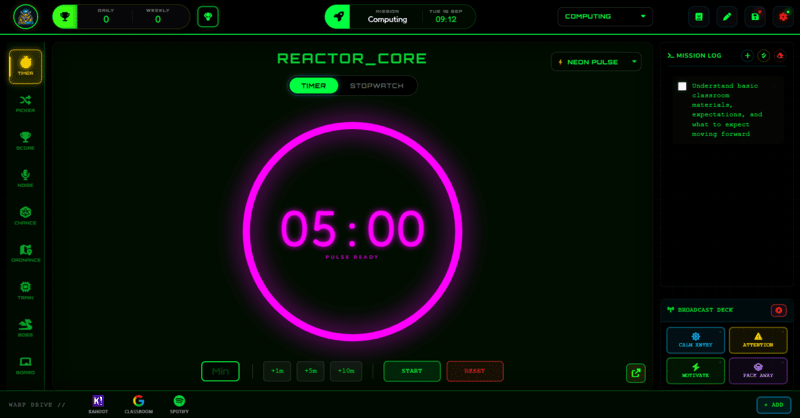
Broadcast Deck is a small grid of tactical audio buttons - CALM ENTRY, ATTENTION, MOTIVATE, and PACK AWAY - for playing a consistent sound cue at a specific classroom moment, with a single Stop All Audio button if you need silence immediately. Mission Log is a simple checklist panel for the lesson's objectives: add an objective, select all, or clear whatever is checked off. Tactical Focus sits just above it as a single-line objective bar - click it to set one short goal the whole class can see at a glance, separate from the fuller Mission Log checklist.
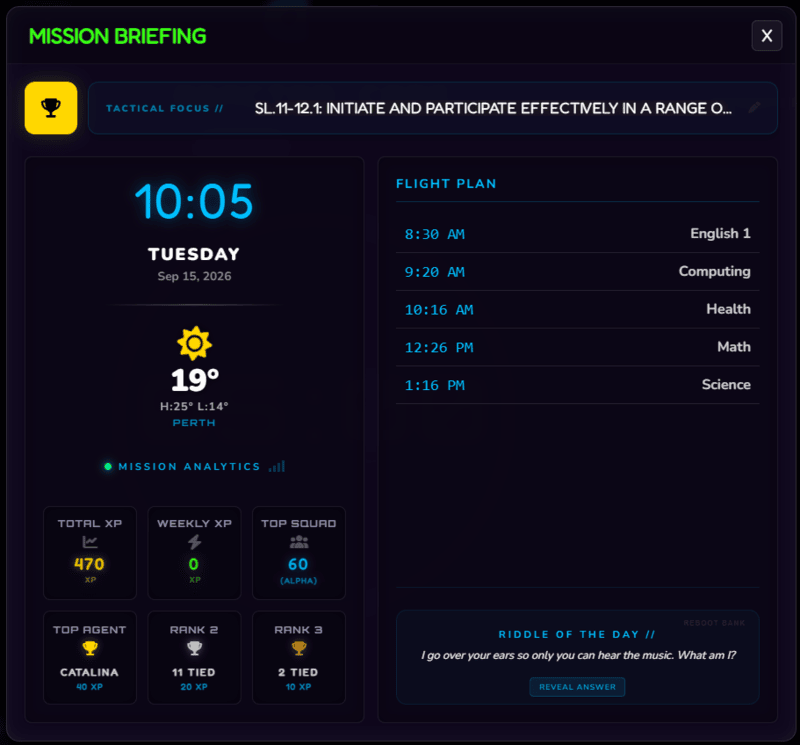
Mission Briefing is the pill in the centre of the navbar - it shows your current class and a live countdown pulled straight from your own timetable, and clicking it any time opens the full briefing. Edit your timetable from Settings > TIMETABLE, picking a day and adding, editing, or deleting periods; every change saves instantly. The countdown shifts from green to gold to red as a period runs low (under 10 and under 5 minutes), a glance-it-from-across-the-room cue. If your last period of the day has nothing scheduled after it, click END OF DAY next to Add Entry to set a real countdown for it too, applied across every day at once.
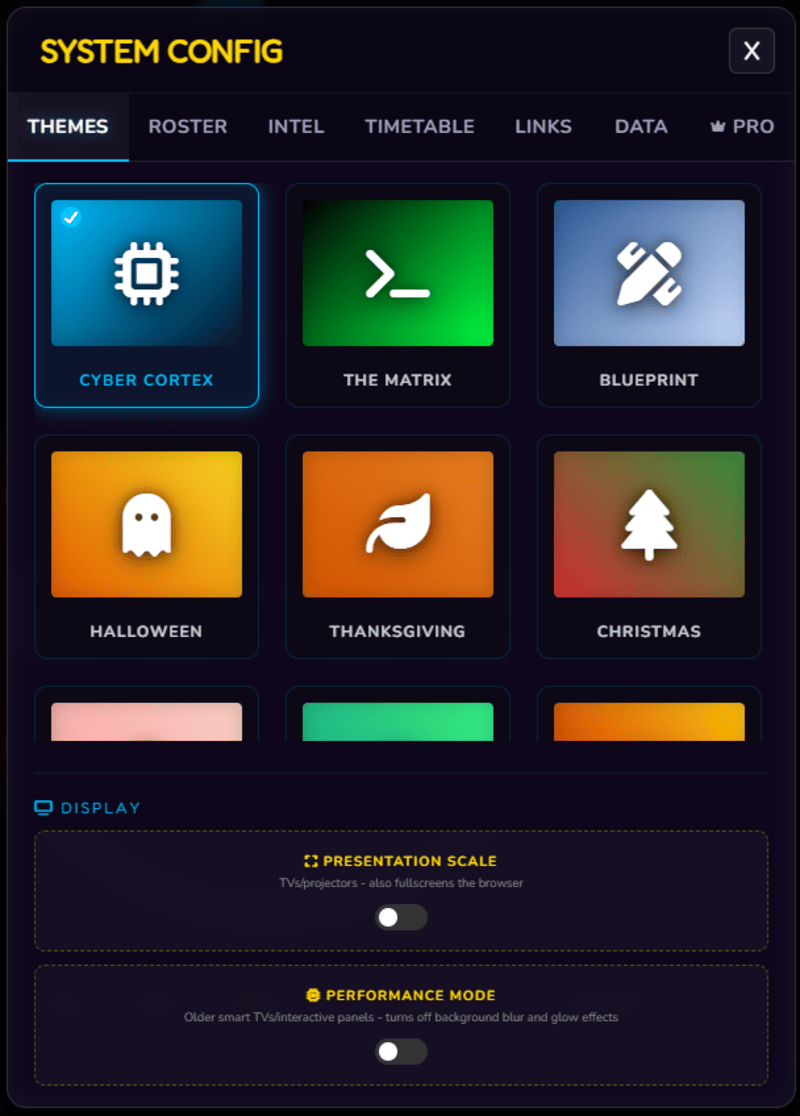
Warp Drive is a scrollable row of quick links along the bottom of the screen - click ADD to save a link you use often, so you are one click from a resource instead of digging through browser tabs or bookmarks mid-lesson. Free caps this at 3 saved links; Pro removes the limit entirely. Themes, found in Settings, restyle the whole dashboard - 27 in total, most of them Pro.
How to Use Broadcast Deck, Mission Log & More: Step by Step
Setting up the small stuff, once, at the start of term takes four steps.
- Add your regular quick links to Warp Drive
Click ADD in the Warp Drive bar to save any site or resource you open often, so it is one click away during a lesson instead of a tab search. Free allows up to 3 saved links at a time; adding a 4th prompts a Pro upgrade.
- Set your Tactical Focus and Mission Log each lesson
Click the Tactical Focus bar to set a single-line objective, and use Mission Log's Add Objective button for anything with multiple steps students need to tick off.
- Turn on Performance Mode if a device is struggling
In Settings > Themes, turn on Performance Mode for an older smart TV or interactive panel that feels laggy - it turns off background blur and a couple of decorative animations, the most demanding effects to render continuously, and shows the Boss Battle bosses in 2D. The 3D BOSSES setting on the same tab (AUTO by default) already switches to 2D by itself on a device too slow for smooth 3D.
- Export a backup from Settings > Data
Class Cortex saves everything locally to your browser, so if your cache is ever cleared, unexported data is lost. Export a JSON backup regularly - a red dot over the save icon means it has been over 24 hours since your last one.
Classroom Use Cases
These features tend to get set up once and then just run quietly in the background:
- Using Broadcast Deck's ATTENTION and PACK AWAY cues as consistent, non-verbal signals for transition moments, so students learn to respond to the sound rather than another verbal reminder.
- Projecting onto an older classroom TV or interactive panel, where Performance Mode and Presentation Scale together make the dashboard both readable and responsive on hardware that would otherwise feel sluggish.
- Running several classes through the same setup using Copy Setup on Pro, instead of rebuilding room layout, XP goals, and boss questions from scratch for every single period.
Warp Drive Caps at 3 Links on Free
If you rely on Warp Drive for more than a small handful of go-to sites, it is worth knowing the free tier stops at 3 saved links - the 4th click on ADD opens the Pro upgrade prompt instead of saving. Separately, Copy Setup (also Pro) stamps a curated set of settings - Room Layout, Mission Log, Tactical Focus, XP Goal, Rewards, Timer Settings, Auto-Penalty, Boss Questions, and Roster/Squads/Points - from your current class onto one or more other classes, with checkboxes to pick exactly what copies. It requires Pro since it is only useful once you have more than one class, but can save a genuinely large amount of setup time at the start of term for anyone teaching multiple periods. Intel Archive entries, student avatars, whiteboard content, and class names never copy, even when everything else is ticked.
How Broadcast Deck, Mission Log & More Ties Into the XP Economy
None of the features in this guide award or deduct XP directly - Broadcast Deck, Mission Log, Tactical Focus, Warp Drive, Themes, and the Settings menu all sit outside the XP economy entirely, as pure organisational and presentation tools.
Where they connect is indirectly, through pacing and consistency: a Mission Log objective ticked off, a Tactical Focus goal met, or a smoothly run transition cued by Broadcast Deck all make it easier to actually reach the activities - Boss Battle, Training, Noise Monitor streaks - that generate real XP through Command Deck.
Free vs Pro: What's the Difference?
Broadcast Deck, Mission Log, Tactical Focus, data export/import, and Performance Mode are all free with no limits. Pro raises the Warp Drive link cap, unlocks most of the 27 Themes, and adds Copy Setup across classes.
| Broadcast Deck, Mission Log & More Capability | FREE | PRO |
|---|---|---|
| Broadcast Deck, Mission Log, Tactical Focus | Included | Included |
| Warp Drive saved links | Up to 3 | Unlimited |
| Dashboard Themes & Copy Setup | A small free theme selection, no Copy Setup | 27 themes total + Copy Setup |
No student accounts. No credit card. No install.
Frequently Asked Questions
What is the difference between Mission Log and Tactical Focus?
Mission Log is a checklist for a lesson's full set of objectives, with items you can check off one by one. Tactical Focus is a single, short objective shown in one line at the top of the dashboard - a quick at-a-glance goal rather than a full list.
What does Broadcast Deck actually play?
Four tactical audio cues - CALM ENTRY, ATTENTION, MOTIVATE, and PACK AWAY - each a short sound for a specific classroom moment, plus a single Stop All Audio button to cut sound immediately if needed.
What is Warp Drive for, and does it have a link limit?
It is a scrollable row of quick links along the bottom of the screen - click ADD to save any site or resource you use often, so it is one click away during a lesson instead of switching tabs to find it. Free caps this at 3 saved links; Pro removes that limit.
Do I need to back up my data manually?
Yes. Class Cortex stores everything locally in your browser, so clearing your cache without exporting first will lose your data. Go to Settings > Data and click Export to save a JSON backup - a red dot over the save icon appears once it has been more than 24 hours since your last export.
What exactly does Copy Setup copy between classes?
Room Layout, Mission Log, Tactical Focus, XP Goal, Rewards, Timer Settings, Auto-Penalty, Boss Questions, and Roster/Squads/Points, all pick-and-choose via checkboxes. It never copies Intel Archive entries, student avatars, whiteboard content, or class names, regardless of what else is ticked.
Further Reading