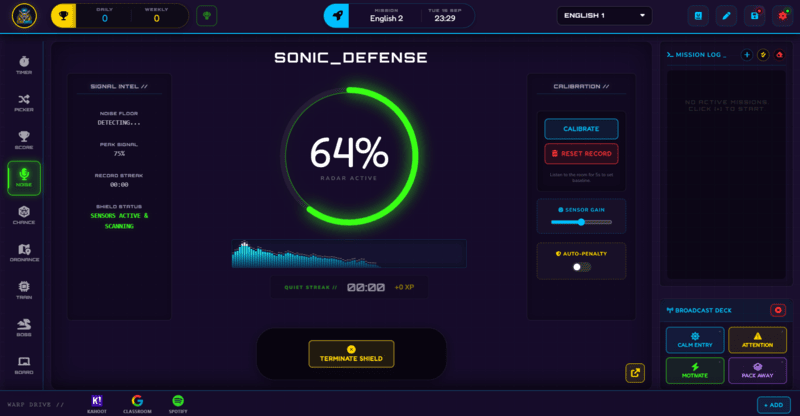
The Noise Monitor listens to the room through your microphone, auto-calibrates to your class's normal volume, and rewards quiet streaks with XP - with an automatic penalty available on Pro.
Verbal reminders about noise lose their power fast - by the third time you have asked for quiet in a lesson, most students have tuned it out. The Noise Monitor replaces that with something visual and automatic: a liquid HUD ring that visualises classroom volume in real time, using your device's microphone, so the class can see the feedback for themselves instead of hearing it from you again.
This guide covers calibration, the Quiet Streak reward, the breach penalty, and what changes with Noise Auto-Penalty on Pro.
What Noise Monitor Does
Auto-Calibrate samples your room's natural background noise for 5 seconds and sets the sensitivity threshold from that sample - so a naturally louder room (a workshop, a PE hall) and a naturally quieter one (a small tutorial room) both get an accurate baseline rather than one fixed setting for every space.
Once calibrated, two things can happen automatically. If the room stays quiet, a Quiet Streak timer counts up and awards +10 XP to the class total every 30 seconds of sustained silence. If volume spikes into the red zone (90% or higher), the screen flashes red as an immediate visual warning, and - if Noise Auto-Penalty is enabled - the class automatically loses 50 XP with no action needed from you.
How to Use Noise Monitor: Step by Step
Setting it up for a new room takes four steps.
- Grant microphone permission
The Noise Monitor needs microphone access to function - your browser will prompt for this the first time you open the panel.
- Auto-calibrate to the room
Click the crosshairs icon and stay quiet for 5 seconds while the system samples the room's natural baseline. Do this again in a different room or after moving furniture, since background noise varies by space.
- Decide whether to enable Auto-Penalty
On Pro, choose whether a volume breach should automatically deduct 50 XP, or whether you would rather just rely on the visual red-flash warning and step in yourself.
- Let the Quiet Streak run in the background
Once calibrated, the monitor runs continuously - no need to restart it each lesson unless the room itself changes. The Quiet Streak keeps counting and rewarding XP for as long as the class stays under the threshold.
Classroom Use Cases
The Noise Monitor works best left running quietly in the background rather than as a one-off activity:
- Independent or group work time, where the Quiet Streak gives students a passive, ongoing incentive to keep volume down without you having to police it.
- Transitions between activities, one of the noisiest moments in any lesson, where the visual red-flash warning gives an immediate, wordless signal that volume has crept up.
- Relief or substitute-covered lessons, where Noise Auto-Penalty on Pro gives a consistent, automatic consequence even if the relief teacher is not familiar with your usual classroom management approach.
Recalibrate When the Room Changes
Auto-Calibrate sets the sensitivity threshold based on a single 5-second sample of that room's natural quiet. If you move to a different classroom, a noisier or quieter time of day, or rearrange furniture that changes how sound carries, recalibrate rather than relying on an old setting - a threshold tuned for a quiet space will trigger constantly in a naturally louder one, and vice versa.
How Noise Monitor Ties Into the XP Economy
The Noise Monitor is one of the few features that can move class XP entirely on its own, with no teacher input. Every 30 seconds of sustained quiet adds +10 XP automatically, and if Noise Auto-Penalty is switched on, a volume breach removes 50 XP just as automatically.
Because both directions are automatic, the class quickly learns that the connection between behaviour and consequence is immediate and consistent, rather than depending on whether you happened to notice and step in. It runs alongside whatever else is generating XP that lesson - Training modules, Boss Battle, manual Command Deck awards - all feeding into the same total.
Free vs Pro: What's the Difference?
Auto-Calibrate, the visual red-flash warning, and the Quiet Streak XP reward are all free. Pro's addition is making the volume-breach consequence automatic.
| Noise Monitor Capability | FREE | PRO |
|---|---|---|
| Auto-Calibrate and live HUD ring | Included | Included |
| Quiet Streak (+10 XP per 30s) | Included | Included |
| Automatic -50 XP on breach | Visual warning only | Noise Auto-Penalty included |
No student accounts. No credit card. No install.
Frequently Asked Questions
Does the Noise Monitor need special hardware?
No, it uses whatever microphone is already built into or connected to the device running Class Cortex. The first time you open the panel, your browser will ask for microphone permission, which needs to be granted for it to work.
How does Auto-Calibrate know what counts as too loud?
Clicking the crosshairs samples your room's natural background noise for 5 seconds and sets the sensitivity threshold from that sample, rather than using one fixed volume level for every classroom. Recalibrate if you change rooms or rearrange the space.
What is the Quiet Streak and how much XP does it award?
If the room stays under the calibrated threshold, a Quiet Streak timer counts up automatically, and every 30 seconds of sustained silence awards +10 XP to the class total. This is available on both Free and Pro.
What is the difference between the free version and Noise Auto-Penalty?
On Free, a volume breach into the red zone triggers a visual red-flash warning on screen, but any XP consequence has to be applied manually by you. On Pro, enabling Noise Auto-Penalty makes that consequence automatic - a breach deducts 50 XP from the class total with no teacher action required.
Can I turn off the automatic penalty if I only want the visual warning?
Yes, Noise Auto-Penalty is an optional toggle on Pro rather than something that is always on. You can enable it when you want a fully hands-free consequence, or leave it off and rely on the red-flash warning plus your own judgement.
Further Reading