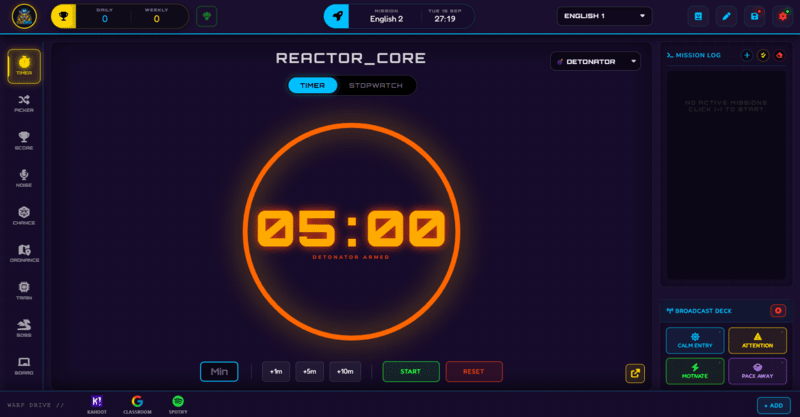
The Timer runs a countdown or stopwatch with two free themes and eight more on Pro, plus a Pro-only Picture-in-Picture mode so it keeps counting in its own window while you use the rest of the dashboard.
Every lesson needs a clock running somewhere, and the Timer is built to be the one you never have to think twice about. It switches between a countdown mode and a stopwatch mode from the same panel, and stays accurate even if you minimise the tab to check something else. On Pro, it can also be popped out into its own small floating window so it keeps counting on a second screen while you run everything else in the main dashboard.
This guide covers both modes, the quick presets, the spacebar shortcut, and the themes - including the eight extra ones that come with Pro.
What Timer Does
The Timer has two modes, switched with tabs at the top of the panel: TIMER counts down from a set duration, and STOPWATCH counts up from zero. Both use the same large, easy-to-read display so students at the back of the room can still see it clearly.
It ships with two free themes, ARC REACTOR and DETONATOR. Pro unlocks eight more: LAUNCH PAD, F1 SPRINT, DATA HACK, ZEN ORBIT, NEON PULSE, ALIEN RADAR, POWER DRAIN, and VHS RETRO - each one restyles the whole timer face, not just the numbers.
How to Use Timer: Step by Step
Setting a timer and getting it on screen takes four steps.
- Choose a mode
Open the Timer panel and pick TIMER for a countdown or STOPWATCH to count up. The panel remembers your last mode the next time you open it.
- Set the duration
Use the +1m, +5m, or +10m quick preset buttons to stack up a duration fast, or type a custom number of minutes directly if you need something more specific, like 7 minutes for a bell-work task.
- Start it and keep teaching
Press start, then press SPACEBAR from anywhere on the dashboard any time you need to pause or resume - you do not need to click back into the Timer panel first.
- Pop it out if you need the screen back (Pro)
On Pro, click Picture-in-Picture to pop the Timer into its own small floating window. It keeps counting on a second screen or corner of the display while you switch to Scoreboard, the Whiteboard, or anything else in the main dashboard. On Free, clicking it opens the Pro upgrade prompt instead.
Classroom Use Cases
The Timer works for pretty much any activity with a hard stop, but a few uses come up constantly in a secondary classroom:
- Bell-work or a warm-up task at the start of a lesson, where a visible countdown does more to keep students moving than a verbal reminder ever does.
- Timed independent work or a test section, using the stopwatch mode if you want students to see elapsed time rather than time remaining.
- Group work rotations, popped out via Picture-in-Picture on Pro so it stays visible on a corner of the screen while you run the Ordnance Map or Scoreboard for the main activity.
The Spacebar Shortcut Works on Free Too
The single most useful detail in this panel is that SPACEBAR pauses and resumes the Timer from anywhere on the dashboard, not just while the Timer panel itself is open, and this works on both Free and Pro. That means you can be running Boss Battle, the Whiteboard, or the Ordnance Map and still control the Timer without switching views - it just sits there counting in the background until you need it. Picture-in-Picture, which pops the whole Timer into its own floating window, is the one piece of this panel that needs Pro.
How Timer Ties Into the XP Economy
The Timer itself does not award or deduct XP - it is a pure utility tool, the same as Chance or the Scoreboard. Its role in the XP economy is indirect: it is what paces the activities that do award XP, like a Boss Battle round, a Training module, or a timed Whiteboard collaboration session.
Because it runs independently of the class roster, you can leave a Timer counting down in Picture-in-Picture mode while awarding XP manually through Command Deck for a completely different activity - the two systems never conflict or reset each other.
Free vs Pro: What's the Difference?
The Timer's core mechanics - both modes, presets, custom duration, and the spacebar shortcut - are all free. Pro adds the extra themes and Picture-in-Picture mode.
| Timer Capability | FREE | PRO |
|---|---|---|
| Countdown and stopwatch modes | Included | Included |
| Themes | 2 (Arc Reactor, Detonator) | 10 total (8 extra) |
| Picture-in-Picture pop-out | Not available | Included |
No student accounts. No credit card. No install.
Frequently Asked Questions
Does the Timer keep running if I switch tabs or open another app?
Yes, the Timer's countdown stays accurate even when the tab is minimised or you switch to another application. On Pro, Picture-in-Picture mode also lets it keep counting in a small floating window on screen while you use the rest of the dashboard - on Free, the Timer keeps running but stays inside its own panel.
Can I set a custom time instead of using the presets?
Yes. The +1m, +5m, and +10m buttons are shortcuts for building up a duration quickly, but you can also type any custom number of minutes directly into the Timer panel.
What does the spacebar shortcut actually do?
Pressing SPACEBAR from anywhere on the Class Cortex dashboard pauses or resumes whichever Timer is currently running, without needing to click back into the Timer panel itself. It is the fastest way to freeze a countdown mid-lesson.
Is Picture-in-Picture mode free?
No, Picture-in-Picture is a Pro feature - clicking it on the Free tier opens the Pro upgrade prompt instead of popping the Timer out. The countdown and stopwatch modes themselves, including the spacebar shortcut, work identically on Free and Pro; Picture-in-Picture and the extra themes are what Pro adds to this panel.
Does the Timer affect class XP in any way?
No. The Timer is a standalone utility panel and does not read or write XP on its own. Any XP changes during a timed activity - a Boss Battle round or a Training module, for example - come from that activity itself, not from the Timer.
Further Reading